
Forgot Password
If you forgot your password, ask your admin to set a new one. What happens if the admin themselves forgot?
What you need to know first
There is no password reset by email in Chatmatic. There is no “Forgot password” link on the login screen, and no reset link is sent to your email address. This is a deliberate security choice to prevent accounts from being taken over by unauthorized people.
If you forgot your password, the account admin sets the new one.
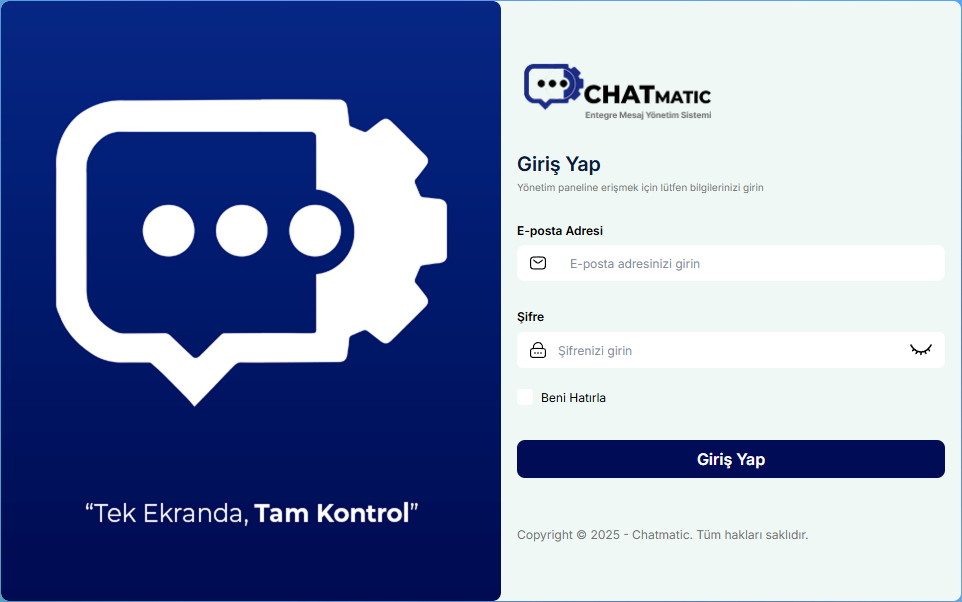 Login screen (email, password, and Remember Me)
If you are an employee: contact your admin
- Tell the admin at your company that you forgot your password.
- The admin sets a temporary password for you and delivers it through a secure channel.
- Log in with the temporary password.
- Immediately change it to your own password from your Profile page.
Don’t share the temporary password in group chats or shared notes. If possible, deliver it in person or by private message, and change it after the first login.
If you are an admin: how to change an employee’s password
- Open the users page from the left menu.
- Find the employee who forgot their password and open the edit screen.
- In the Login Password card, fill in the New Password and Confirm Password fields with the same password. The card says “Leave blank if you don’t want to change the password.”
- Save.
The same can be done with the Change password option in the user list. For other user actions, see Team Management.
This action requires the edit user permission. If you don’t have it, contact the account admin. See Roles and Permissions.
What makes a good password?
A new password must include all of the following:
- At least 8 characters
- At least one uppercase letter
- At least one lowercase letter
- At least one digit
- At least one special character (for example
!,?,*,.)
Example format: Blue.Sea2026! (choose your own password differently from this).
If the admin themselves forgot their password
If there is another admin on the account who can change your password, ask them for help.
If you are the only admin on the account, contact the Chatmatic support team. You may be asked to verify that you are the account owner. See Support.
If you know your password and just want to change it
After logging in, you can always change your password from your Profile page. No extra permission is needed.
I can’t log in, but the password isn’t the reason
| Symptom | Likely cause | What to do |
|---|---|---|
| The password is correct but a verification code is requested at login | Two-step verification is on | The code is sent to your email or phone. If it doesn’t arrive, see the FAQ page |
| Email address not found | Wrong email, or you are on a different company’s address | Make sure you are on the correct company address |
| Account is inactive | The admin has disabled your login | Ask your admin to activate the account |
| The page doesn’t open at all | The address is wrong | Check your login address |
For security settings, see Security and Logs.
Common mistakes
- Looking for a link on the login screen: There isn’t one. Password changes are requested from the admin.
- Never changing the temporary password: Since the admin knows the password, your account is not considered secure. Change it at first login.
- Relying on the browser or “Remember Me” and not noting down the password: You will still need it on another browser or device. Store your password in a trusted password manager.