
Actions from the Contact Card
Add a conversation log, set a reminder, and create a task. Do it all from the contact card without leaving the chat.
Overview
If the contact is registered, the card has Conversation, Reminder, and Task buttons. Each opens a panel from the right. You do not leave your messaging screen.
You can close the panels with the back arrow at the top left or the X at the top right.
Adding a conversation log
Used to record the topic you discussed with the customer.
- Click the Add Conversation button.
- Fill in the form:
| Field | Description |
|---|---|
| Source | Where did the customer reach you from? |
| Chat Type | The type of conversation |
| Conversation Date and Time | Day and time |
| Stage | Pipeline stage (Sales, Consultation, or stages you have defined) |
| Description | A summary of the conversation |
- Save.
Depending on your account, the form may also show a selection for product/service of interest, real estate, or vehicle. The price and features of the record you select are summarized inside the form.
The Conversations button lists these records from oldest to newest. Click a conversation to open details such as channel, source, and description.
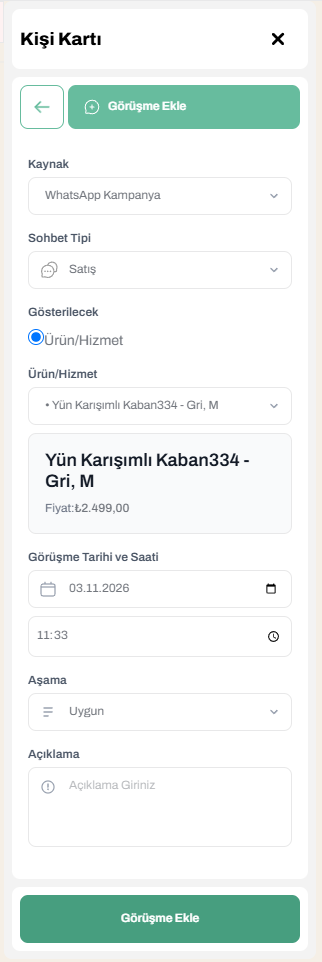 Add conversation panel
Leave a conversation note after every important chat. When someone else on the team takes over the conversation, they see the history right away.
To manage pipeline stages, see Pipeline Stages.
Adding a reminder
Used to call the customer or get back to them later.
- Click the Add Reminder button.
- Fill in:
| Field | Description |
|---|---|
| How Many Days Until We Call? | Example: 1 |
| What Time? | Example: 12:00 |
| Status | Pending, No Answer, Completed, Canceled |
| Description | Optional note |
- When you enter the number, the Scheduled Call Date is calculated and shown automatically. Check the date and save.
The Reminders button lists the reminders that have been set.
To follow up on reminders, see Call Reminders.
Adding a task
Used when something needs to be done and you want to associate it with the contact. For example, “Prepare the price quote”.
- Click the Tasks button. Tasks linked to the contact are listed.
- Click the add button for a new task.
- Fill in:
| Field | Description |
|---|---|
| Title | The name of the task |
| Description | Details |
| Category | Task type |
| Due Date, Due Time | Deadline |
| Assigned Users | Employees who will do the task. Find them with the Search users box; the “Recently Added” list allows quick selection |
- Save.
Following up on a task
Click a task in the list to open its details:
- Status: Change it from the menu.
- Assigned Users: Checking the box next to each employee shows that person has finished their share of the work.
- Notes: Share progress by typing in the Add note… field.
- If the due date has passed, the date appears in red.
- Use the pencil next to the title to edit the task and the trash can to delete it.
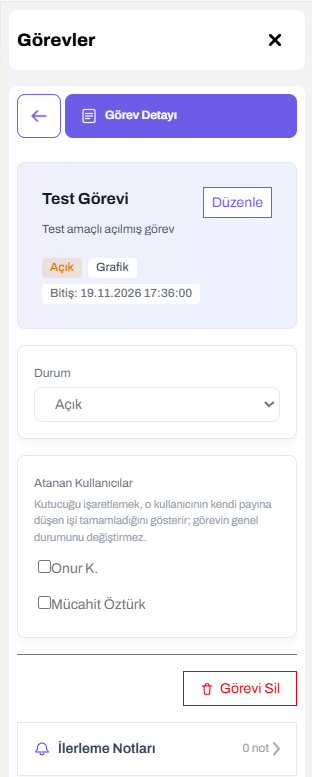 Task details