
Web Chat Visitor Information
Get to know the visitor writing from your website: identification status, the page they came from, and customer matching.
Why is it different?
Someone writing from the chat box on your website does not arrive with a phone number as on WhatsApp. Often you do not even know their name. That is why, in Web Chat conversations, the contact card shows the information collected about the visitor.
At the top of the card, instead of the WhatsApp/Instagram logo seen on other channels, there is a colored circle with a chat icon. The circle color is specific to the visitor; it helps you recognize the same person in the conversation list.
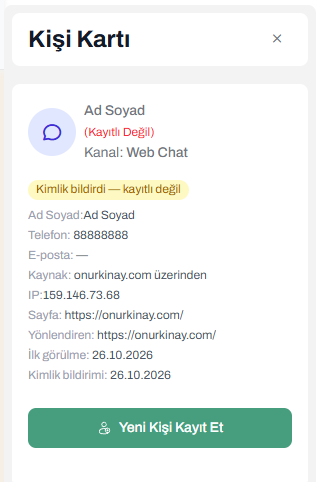 Web Chat visitor card
Visitor status
If the visitor is not yet registered as a customer, the card indicates how well they are known with a label:
| Label | Meaning |
|---|---|
| Anonymous visitor (gray) | Has not left a name, phone, or email |
| Identified, not registered (yellow) | Has left information but is not registered as a customer |
When the visitor is matched with a customer and saved, this information block gives way to the normal Contact Card view.
Information shown on the card
| Row | Description |
|---|---|
| Full Name, Phone, Email | Information the visitor provided. If they did not leave it, — is shown |
| Source | Which site they wrote from (“via …”) |
| IP | The visitor’s IP address. Click to copy |
| Page | The page they were on when they wrote |
| Referrer | Which page they came to your site from |
| First seen | When they first appeared on the site |
| Identified at | When they left their information |
Some of the information is shown only if available.
The Page row is the fastest way to understand what the visitor is interested in. Someone on the pricing page and someone on the contact page ask different questions.
An IP address does not identify a person with certainty. Different people from the same office can come with the same IP. That is why a visitor-specific identifier, not the IP, is used to tell people apart.
Turning a visitor into a customer
If the visitor has identified themselves, you can register them as a customer.
- Click the Register New Contact button on the card.
- Check and complete the information the visitor left.
- Save.
If the phone or email matches an existing customer, the Link Chat to Customer option appears. For details, see Saving a New Contact.
After registration, the card switches to the normal Contact Card view. The conversation, reminder, and task buttons become available. See Contact Card.
Common mistakes
- Trying to guess an anonymous visitor: Do not make up a name for someone who has not left information. First politely ask for their name and phone in the chat.
- Merging contacts based on IP: Even if the IP is the same, the people may be different.