
Saving a New Contact
When chatting with an unregistered person, save them from the card, or link the chat to the existing customer if they are already registered.
When is it used?
If the conversation card says (Not Registered), the person is not yet in your customer list. Without leaving the conversation, you can save them from within the card.
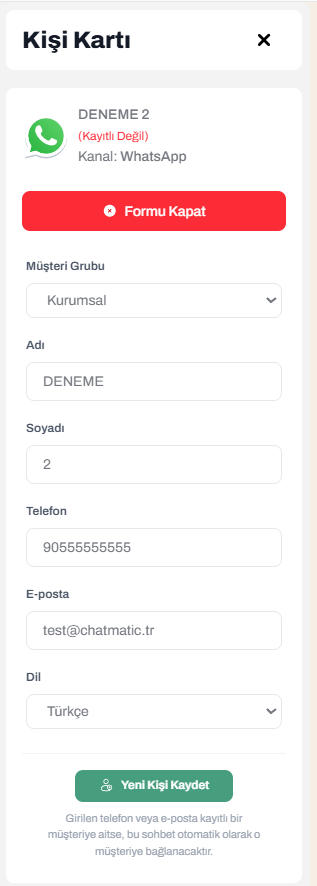 Card of an unregistered contact
Step-by-step registration
- On the card, click the green Register New Contact button. The form opens below.
- Fill in the fields:
| Field | Description |
|---|---|
| Customer Group | The group the contact will belong to |
| First name, Last name | The contact’s name |
| Phone | You can type a Turkey number like 0532 123 45 67. Type a foreign number as +49 151 ... with + and the country code |
| Optional | |
| Language | The language of messages sent to the contact |
| Description | Optional note |
| Stage | Start, Not Suitable, Interested, Needs Follow-up, Appointment |
| Reminder notes | Optional |
- Click the Save New Contact button at the bottom.
While the form is open, the button text becomes Close Form and turns red. Click it if you change your mind.
When you leave the field, the system arranges the number automatically: spaces and parentheses are removed, and the leading 0 is replaced with 90 (0532 123 45 67 → 905321234567). Numbers without a country code are treated as Turkey. For details, see Phone Numbers in Chatmatic.
Convenience in email conversations
In Gmail and SMTP conversations, email addresses that appear in the email show up below the form as suggestions.
- The address marked (Sender) is the person who sent you the email. It has a green border.
- If you click a suggestion, the email field is filled with that address.
What happens if the contact is already registered?
When you type the phone or email, the system checks whether someone is registered with the same information. If so, a blue box appears:
This information is already registered: Ayşe Yılmaz (Phone matched)
The box shows the matching contact’s phone, email, language, and customer group. In this case:
- The first name, last name, phone, and email fields are locked (appear gray). They cannot be changed.
- The main button becomes the blue Link Chat to Customer.
- If you click the button, no new contact is created. This conversation is linked to the existing customer’s card.
If the match is wrong, click the refresh icon next to the form. The match is cleared and the fields are emptied.
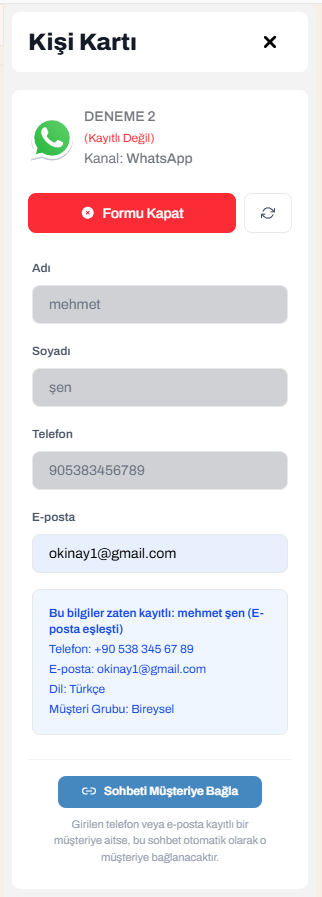 Identity match: "This information is already registered"