
Sending Templates (24-Hour Rule)
Write to WhatsApp conversations past 24 hours with a template. Choosing a template, preview, statuses, and parameterized templates.
Why is a template needed?
WhatsApp does not allow businesses to send free-form messages to a customer whenever they want. The rule is:
- After the customer writes to you, you can reply as you like for 24 hours.
- After 24 hours have passed, free-form messages cannot be sent. The only way to restart the conversation is a template message approved in advance by Meta.
Chatmatic applies this rule for you. You do not try to send and get an error; the message box comes locked from the start and you are asked to choose a template.
Chatmatic does not calculate the rule; the server does. The red warning text you see on screen is also a ready-made text sent by the server. That is why you may see a different explanation in different situations (for example, when the conversation is handed over to another device).
The three states of the message box
When you open a WhatsApp conversation, the input area at the bottom can appear in three ways.
1. Free-form text (within 24 hours)
You see a normal box. The placeholder text is Type your message. If you are replying to something, it says Type your reply….
- Enter sends the message.
- While you type, a “typing…” indicator appears for the other side.
2. Locked but contact is registered (24 hours passed)
In place of the box you see:
Please select the message template you want to send. [ Select a message template ]
Click the button and the template window opens. While templates load, the button says Loading templates… and a spinning icon appears.
3. Locked and contact is not registered
A red warning appears:
Unregistered User You cannot send a template message because this contact is not registered in the system.
You must register the contact first. On the Contact Card on the right, click the Register New Contact button; then the template option opens. For the steps, see Saving a New Contact.
 "Select a message template" button in a conversation past 24 hours
Red bar
While sending is blocked, a warning bar with a red border also appears above the message area. It states the reason you cannot send. If you just opened the conversation and the messages are loading, the box stays locked briefly; this is normal, and the box opens when loading finishes.
Sending a template to one contact
- In the locked conversation, click the Select a message template button.
- In the Select Template window that opens, choose a template from the list. The message on the right goes to this conversation’s contact.
- Check the Template Status label at the bottom right.
- Send.
- The template message appears in the conversation, and if the customer replies, the 24-hour window opens again. Your box returns to free-form text.
Structure of the window
The Select Template window includes:
| Item | What it does |
|---|---|
| Line selector | If you have more than one WhatsApp number, selects which number’s templates you see. All lists everything |
| Template type filter (tag icon) | Narrows templates by type. Only one type is selected at a time. All removes the filter |
| Refresh button | Re-fetches the template list from the server |
| Template cards | Each template is a card |
| Close (red X) | Closes the window. Clicking outside the box also closes it |
When you select a type, you see the list refresh. At that moment it says Loading templates… Please wait.
How to read a template card
Each card includes:
- Title: The template’s display name. If missing, its subject or system name
- Header image or document: If the template has an image or file, a small image appears
- Footer: A small note added at the bottom of the template
- Button chips: The template’s clickable buttons. The first two are shown, the rest are written as +N
- Line info: Which number the template belongs to, next to a phone icon
- Status label: The colored label at the bottom
- View Details: Opens the whole template
The selected card’s border turns blue.
Meaning of button chips
| Icon | Button type | What happens when the customer taps it? |
|---|---|---|
| Link | URL | The web address opens |
| Phone | Phone number | A call starts |
| Copy | Copy code | The code is copied to the clipboard (for example, a coupon code) |
| Message bubble | Quick reply | The button text comes to you as a reply |
Template statuses
Meta reviews each template before making it sendable. On the cards, the status label is shown by color:
| Label | Color | Meaning |
|---|---|---|
| Approved | Green | Meta approved it, safe to send |
| Pending | Yellow | Review is in progress |
| Rejected | Red | Meta rejected it, sending will fail |
Chatmatic shows the approval status as information but does not stop you from selecting it. If you select a Pending or Rejected template, Meta may bounce the message and the red Message could not be sent icon appears next to it. Before sending, check that the status is Approved.
Preview and details
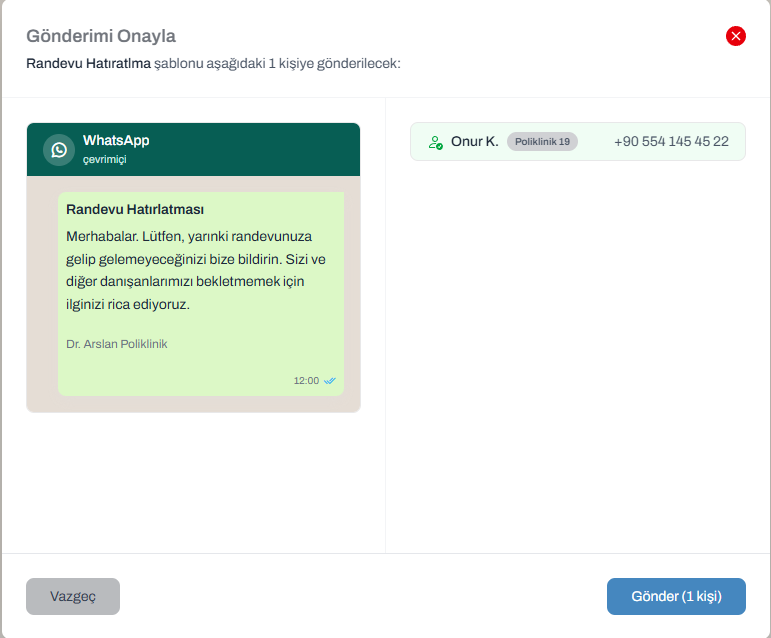
The View Details button shows how the template will go to the customer.
- Header: The top heading. It can be text, an image, or a file. For images and documents, a link is also provided
- Body: The main text of the message. Links inside are clickable
- Footer: The footer (if any)
- Buttons: The buttons in the template, with their types. The heading shows how many buttons there are
Review the Body text before sending. The template goes to the customer as is; you do not get a chance to fix it as you would with a free-form message.
 Template details window